Manage channel accessChoose member roles, OAuth, API keys, or OIDC-based Repository Access.
Channel access covers both people and automated tools. Choose the narrowest mechanism that supports the task and the shortest practical lifetime.
Choose an access mechanism
Member roles define what a signed-in person can do.
Interactive OAuth lets a local tool act for a signed-in person without copying an API key.
Channel-scoped API keys support clients that cannot use OAuth.
Repository Access gives a matching CI/CD or Google Cloud workload short-lived access without a stored prefix.dev key.
Channel-scoped keys and Repository Access set a capability ceiling for one channel. The user’s role or trusted-publisher relationship must also permit the operation.
Legacy unscoped All keys are different: they include every channel scope globally, constrained by the user’s role on each channel.
Warning: Do not create new All keys. Replace existing ones by deploying and testing a narrower credential before revoking the old key.
Assign member roles
Task | Viewer | Contributor | Owner |
|---|---|---|---|
Browse and download from a private channel | Yes | Yes | Yes |
Upload, reindex, yank, and restore packages | No | Yes | Yes |
Permanently delete package variants | No | Yes | Yes |
Change settings or manage members and Repository Access | No | Yes | Yes |
Transfer ownership or delete the channel | No | No | Yes |
To add a member:
Open Settings > Members.
Select Invite member and find an existing prefix.dev user.
Choose Viewer or Contributor, then confirm.
Remove access when it is no longer needed.
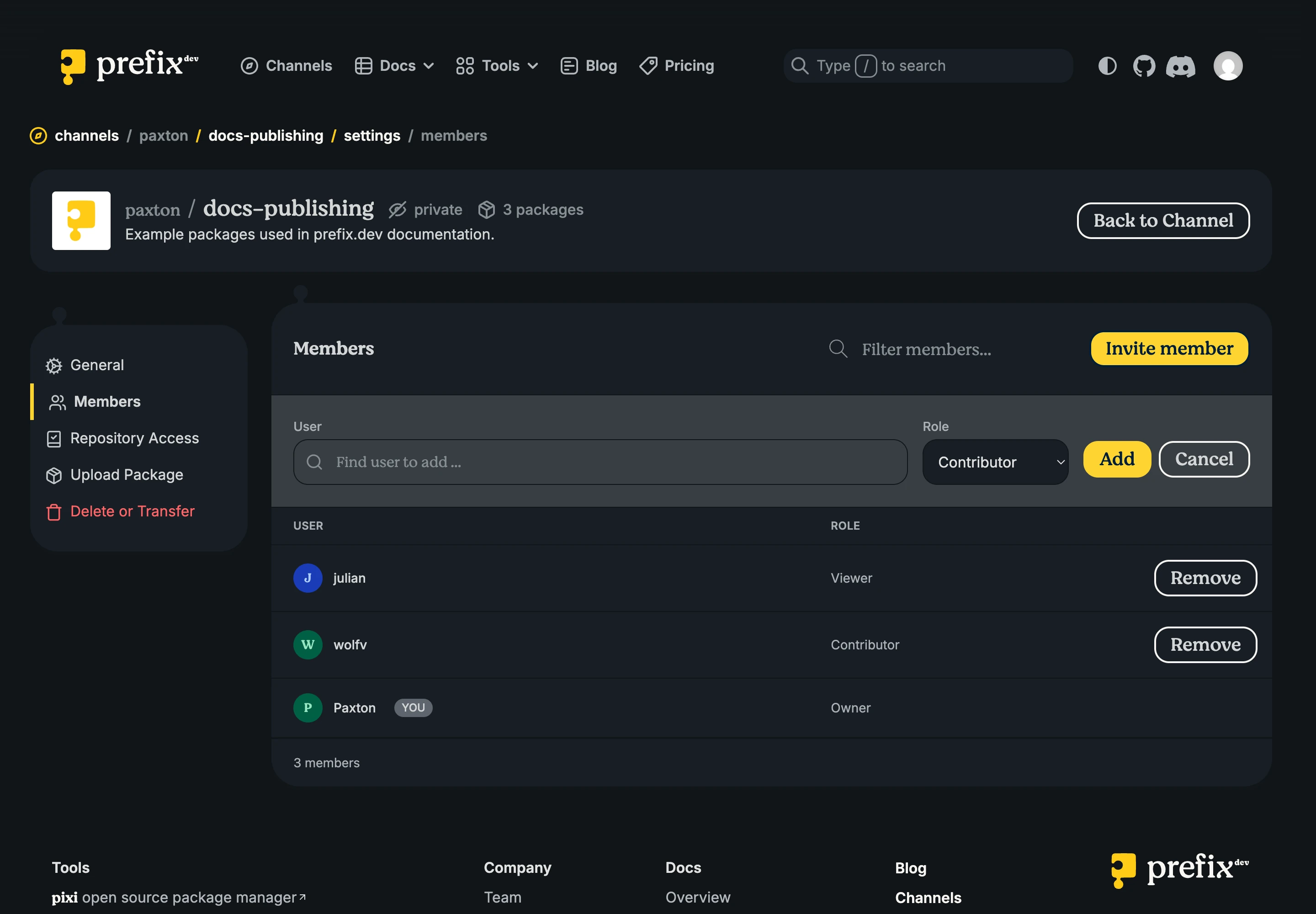
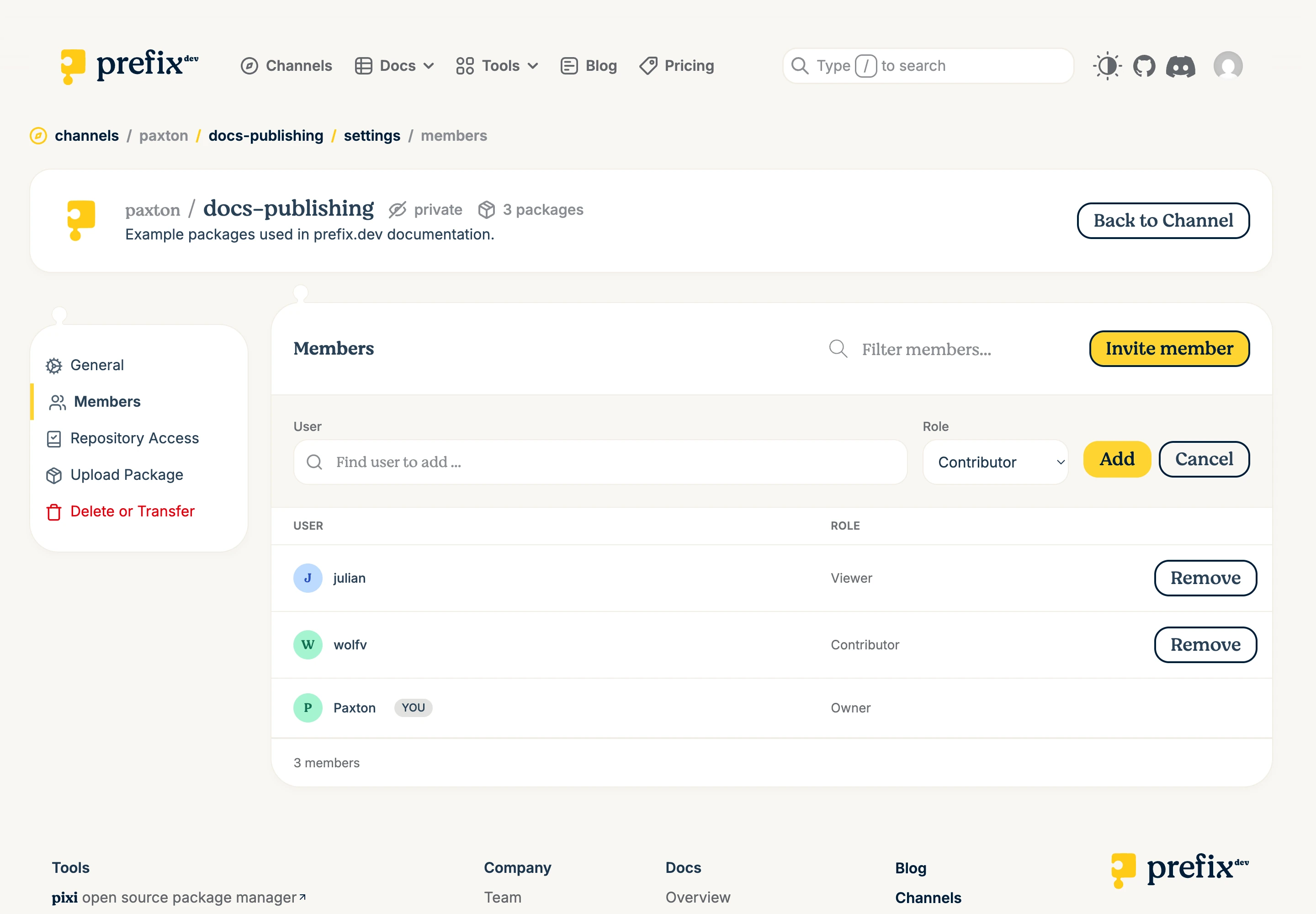
The Owner cannot be removed as a member. Transfer ownership instead.
Prefer OAuth for local tools
Run:
pixi auth login prefix.dev
Complete the browser authorization flow. OAuth avoids copying a long-lived secret into a command or configuration file.
Understand API-key modes
Mode | Scope | Capability |
|---|---|---|
All | Legacy and unscoped | Every channel scope globally, constrained by the user’s role |
Read | One private channel | Read metadata and download packages |
Read/write | One channel | Read, upload, reindex, yank, and restore |
Read/write/delete | One channel | Read/write plus permanent deletion and force replacement |
Create a channel-scoped API key
Sign in and open Settings.
Select API keys.
Enter a unique Name and optional Description.
Choose an Expiration date.
Under Access, choose Read, Read/write, or Read/write/delete.
Select the channel by its canonical path, such as
acme/research.Select Generate API Key.
Copy the key immediately. It is shown only once.
Use Read for private downloads, Read/write for normal publishing and yanking, and Read/write/delete only when the client must permanently delete or force-replace variants.
Treat every key as a password. Review its status, expiry, last use, mode, and canonical channel path. To rotate a key, deploy and test a replacement before selecting Revoke on the old key. Delete the revoked record later when you no longer need its audit context.
If a client accepts a token only as a command-line argument, avoid entering it directly into shared shell history or logs. Prefer the client’s credential store or your environment’s secret injection mechanism.
Configure Repository Access
Repository Access uses OIDC to match a provider identity and mint short-lived prefix.dev access. Owners and Contributors can add or remove a source.
Open Settings > Repository Access.
Choose GitHub, GitLab, or Google Cloud.
Choose the narrowest mode: Read, Read/write, or Read/write/delete.
Enter the provider identity fields.
Select Authorize and confirm the source under Authorized Sources.
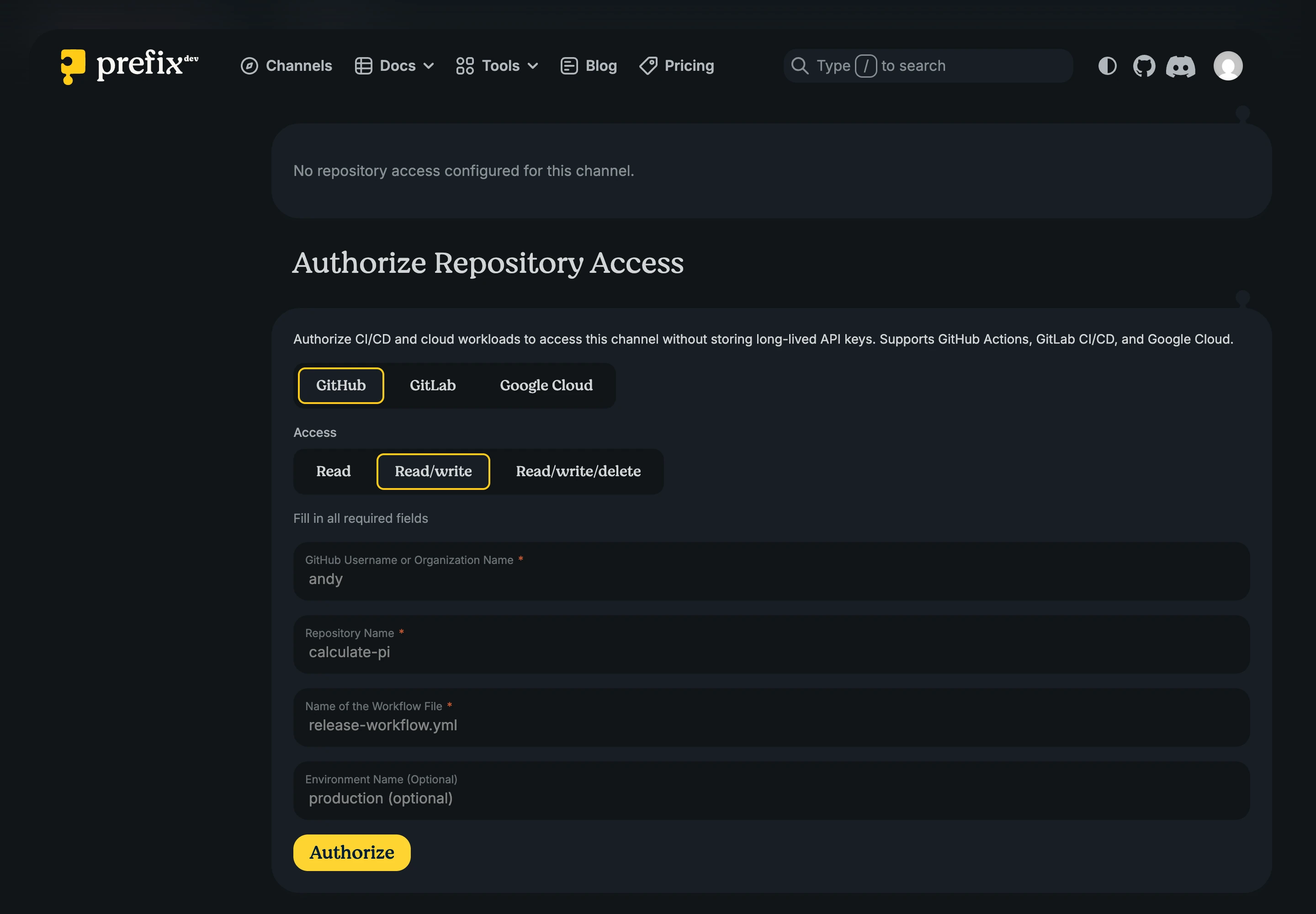
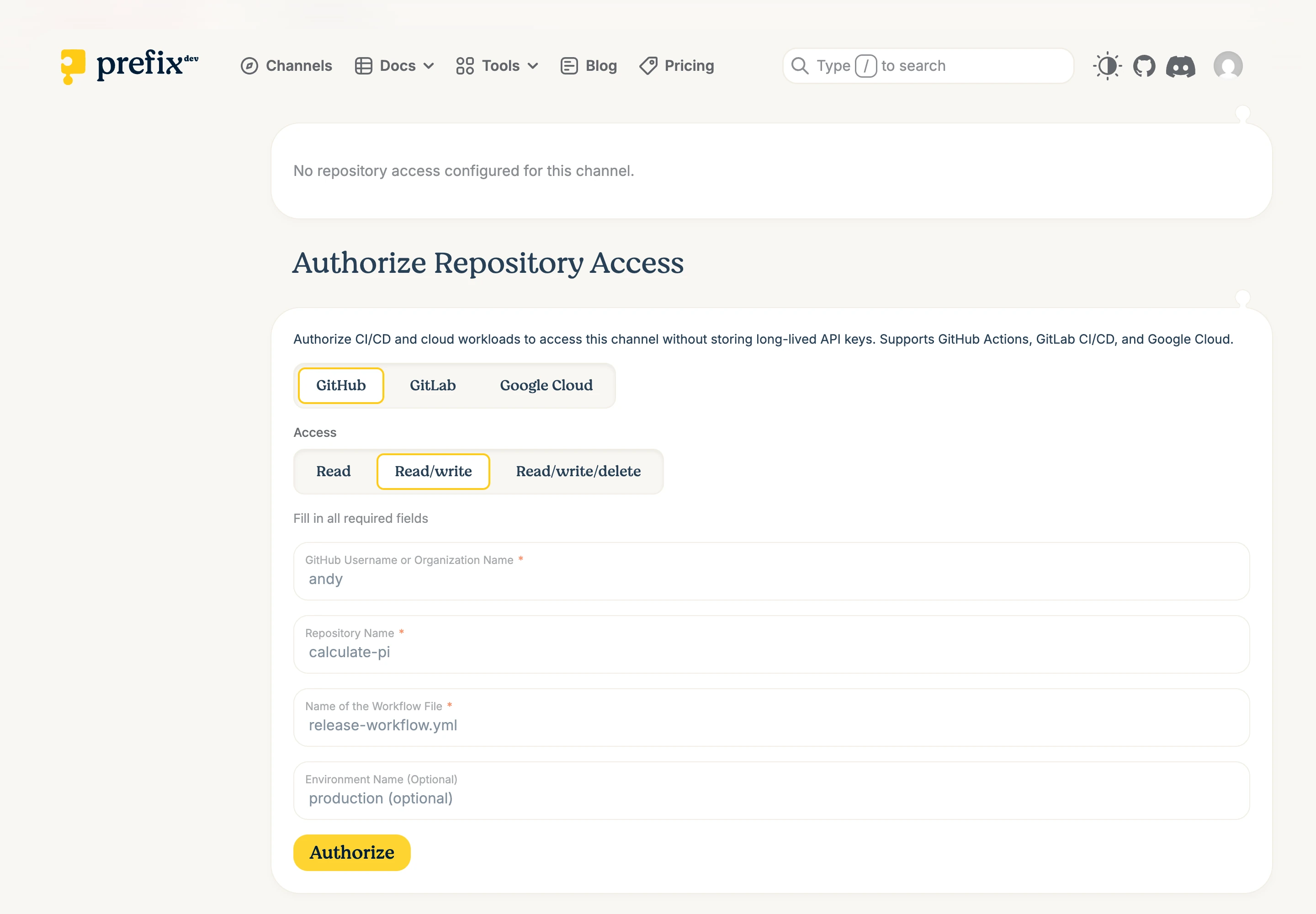
Repository Access does not grant channel settings, member management, ownership transfer, or channel deletion.
GitHub Actions
Configure the organization or username, repository, workflow filename, optional GitHub Environment, and access mode. The workflow must request GitHub’s OIDC permission:
permissions:
    contents: read
    id-token: write
If you configure a GitHub Environment, the token must contain the same environment name. Matching is exact and case-sensitive. Leaving the field blank does not restrict the source to an Environment.
After Repository Access is configured, the matching workflow can upload with:
rattler-build upload prefix --channel <canonical-channel-reference> <package-file>
Protect changes to publishing workflows and use the narrowest access mode.
GitLab CI/CD
Configure the namespace, project, CI configuration filepath, optional environment, and access mode. The token audience must be prefix.dev. The project path is compared case-insensitively; the workflow filepath and configured environment are matched exactly.
Google Cloud
Configure the service-account email, optional subject, and access mode. The Google-issued ID token must use audience prefix.dev and match the configured identity.
Remove Repository Access
Remove a source under Authorized Sources when a repository or workload no longer needs access. When moving to a replacement, add and test the new source first, then remove the old one.